Log In to Your Training Account Here
User Guide For Training Managers

As the Training Manager for your organization’s HIPAA Journal training courses, you are responsible for enrolling learners onto the course and have the ability to view their progress. This guide provides step-by-step instructions for enrolling users individually or in bulk, as well as for viewing your learner statistics.
User Guide Menu
SUPPORT: If you have any questions or need any help, please do not hesitate to reach out to us using this form or by emailing customer support.
SUPPORT: If you have any questions or need any help, please do not hesitate to reach out to us using this form or by emailing customer support.
Accessing The Training Manager Dashboard
- Within 24 hours of your purchase, you will receive an email prompting you to set a password for your Training Manager account.
- Click the “here” link in the email and follow the steps to create your password.
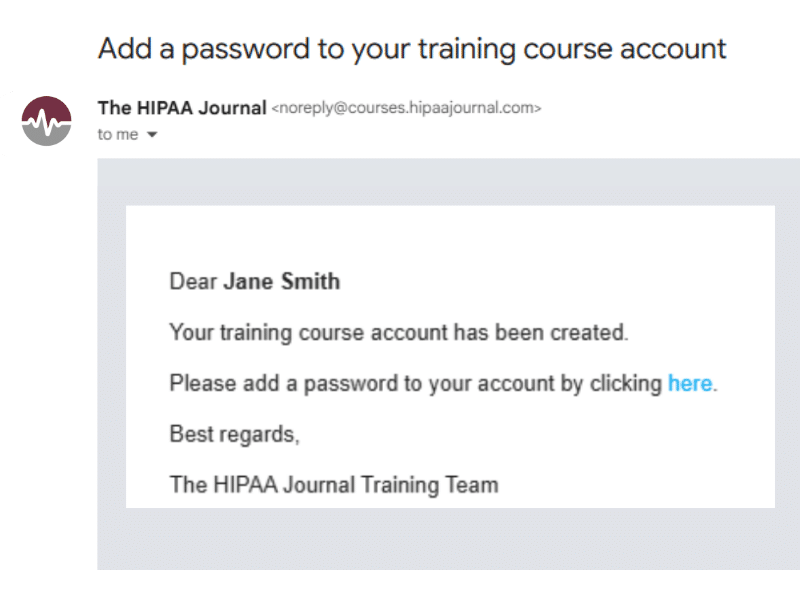
- After setting your password, log in to access your Training Manager dashboard.
IMPORTANT: Please be aware that if the number of users you add exceeds your seat allowance, i.e., the number of seats you purchased, then any additional users will not be enrolled or tracked in the statistics. If you need extra seats please reach out to sales.
Enrolling Learners
In order to enroll your organization’s learners, you will need to enter their names and email addresses. You can add the learners’ details individually (option 1) or via bulk upload (option 2).
We recommend uploading the learners’ information via bulk upload if you have a large number of learners.
Option 1: Enroll users individually:
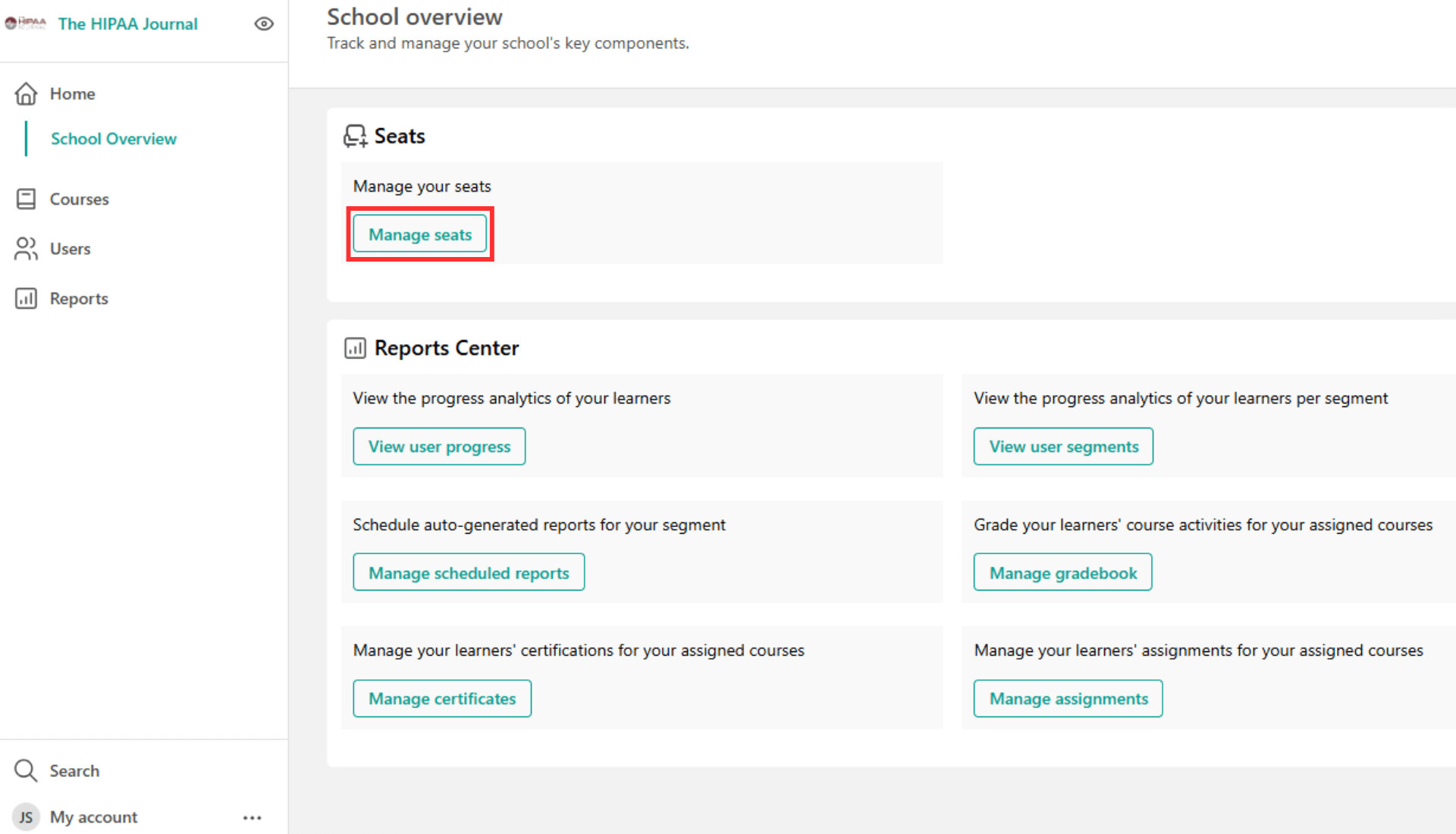
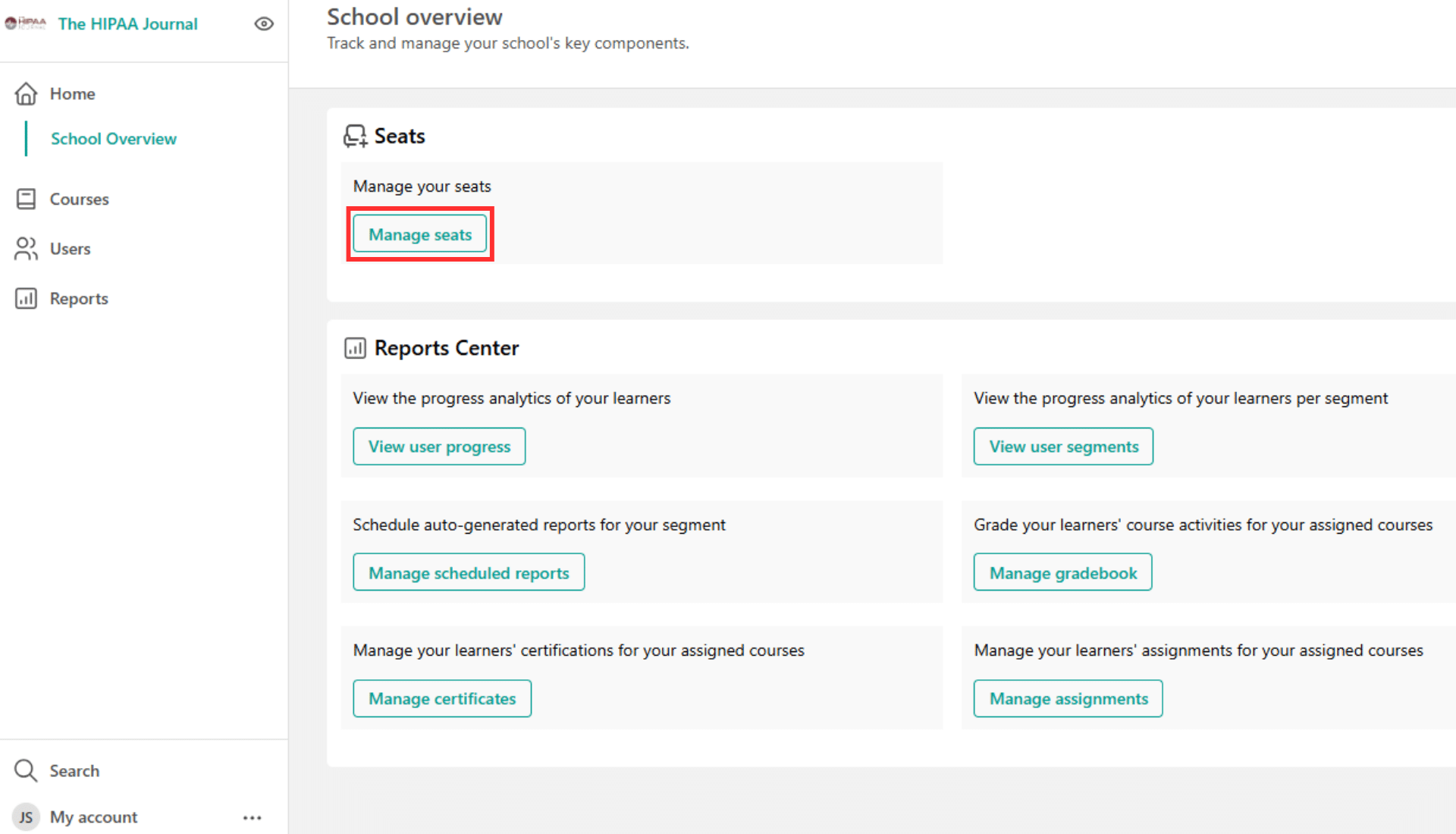
- From the training manager area, click ‘Manage Seats’.
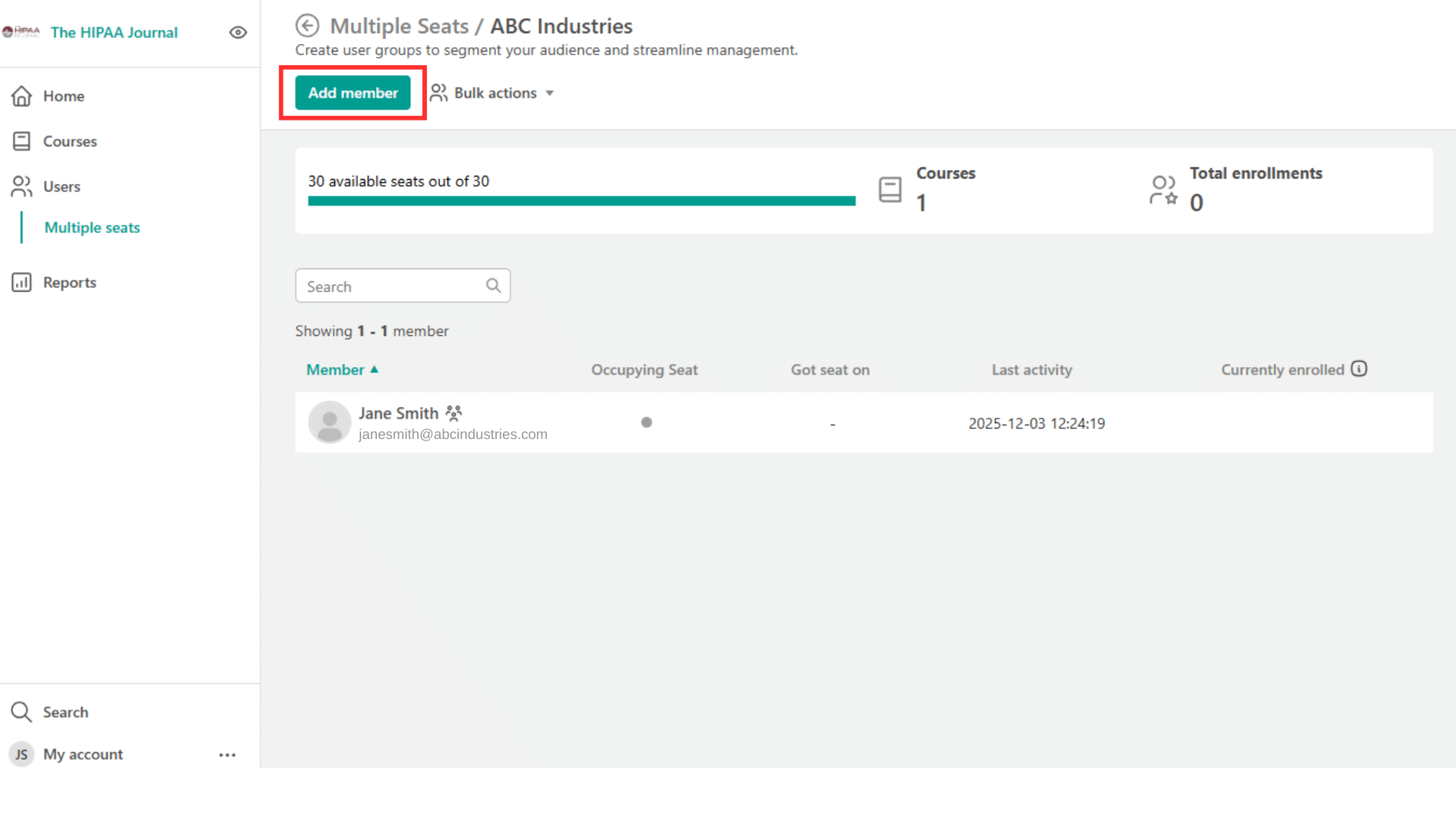
- Click the ‘Add member’ button.
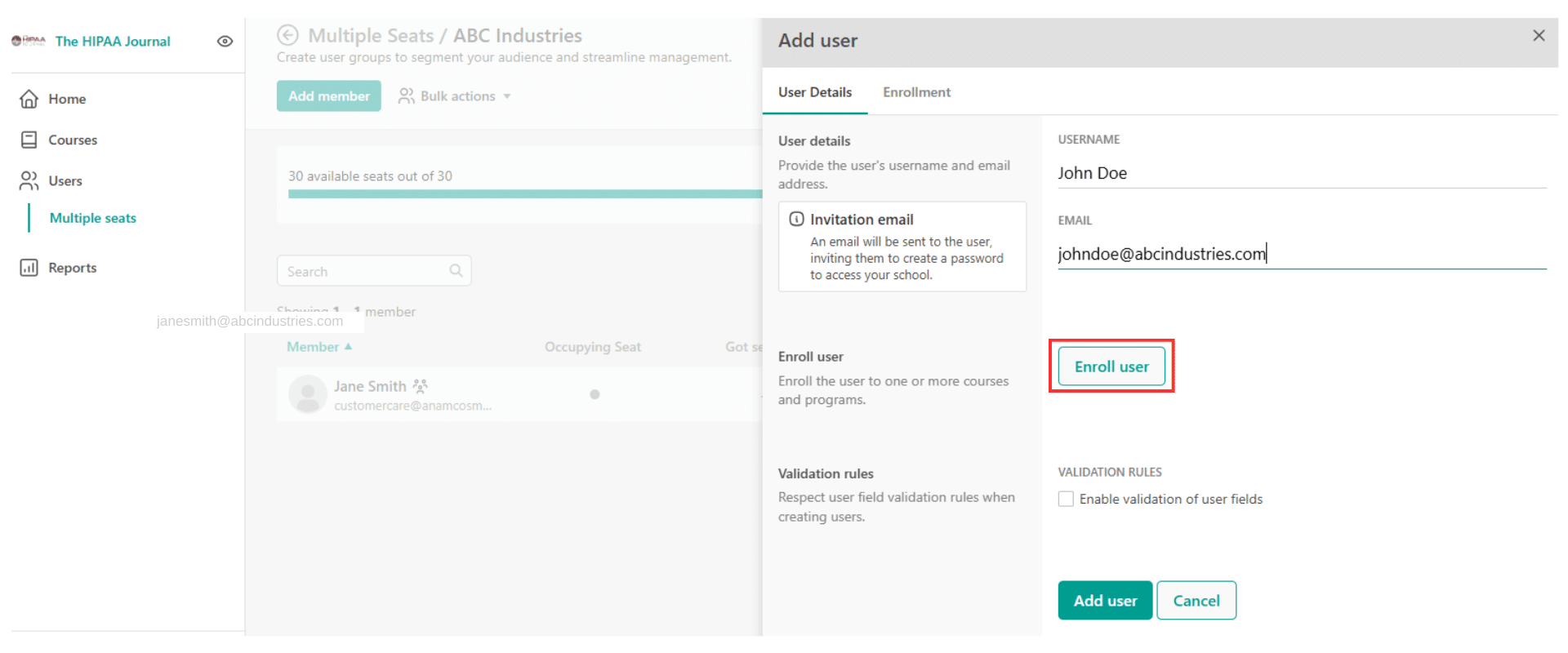
- Enter the learner’s First and Last name and email address, then click ‘Enroll user’.
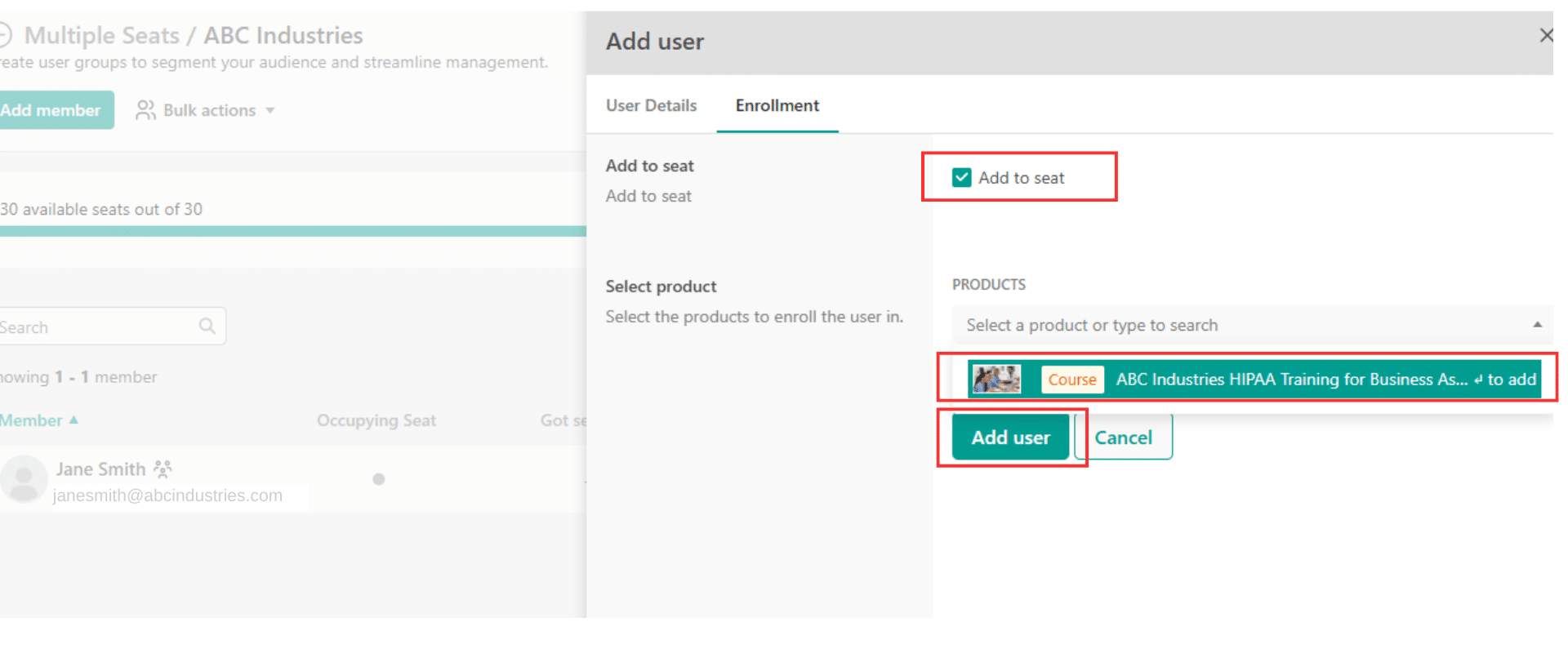
- Tick the ‘Add to seat’ box and select the course from the drop down menu. Then click ‘Add user’.
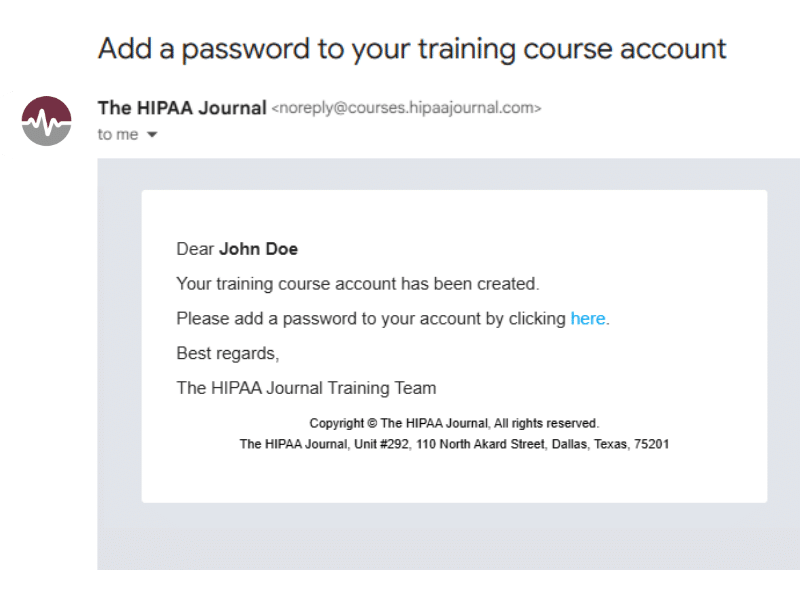
- The user will receive an email asking them to create a password, and then they can begin the course.
IMPORTANT: Please be aware that if the number of users you add exceeds your seat allowance, i.e., the number of seats you purchased, then any additional users will not be enrolled or tracked in the statistics. If you need extra seats please reach out to sales.
Option 2 : Enroll users in bulk:
- The first step is to download our Excel template file by clicking here.
- You need this file to add your users for the bulk upload.
- When you click on the “here” link the file should download automatically into your normal download folder.
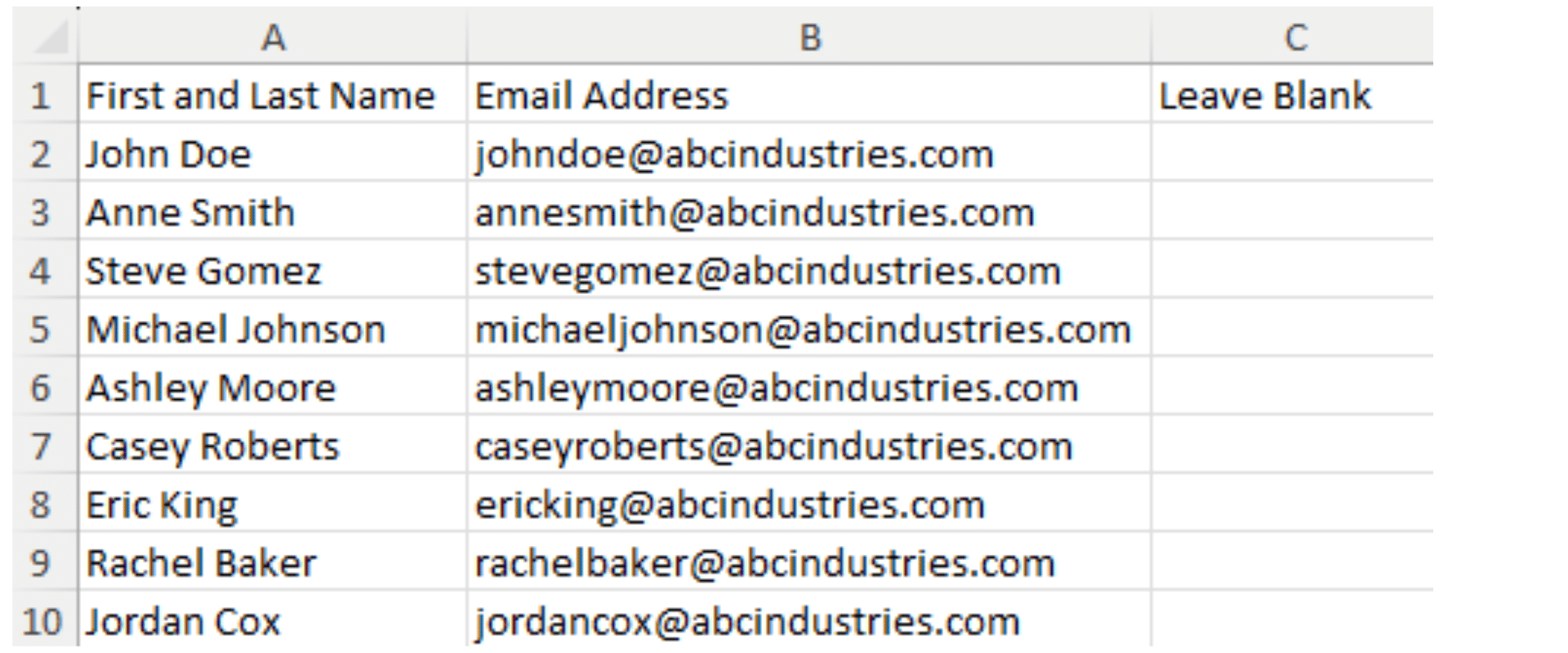
- You can also create your own file as long as you use the same three columns shown in the screenshot below.
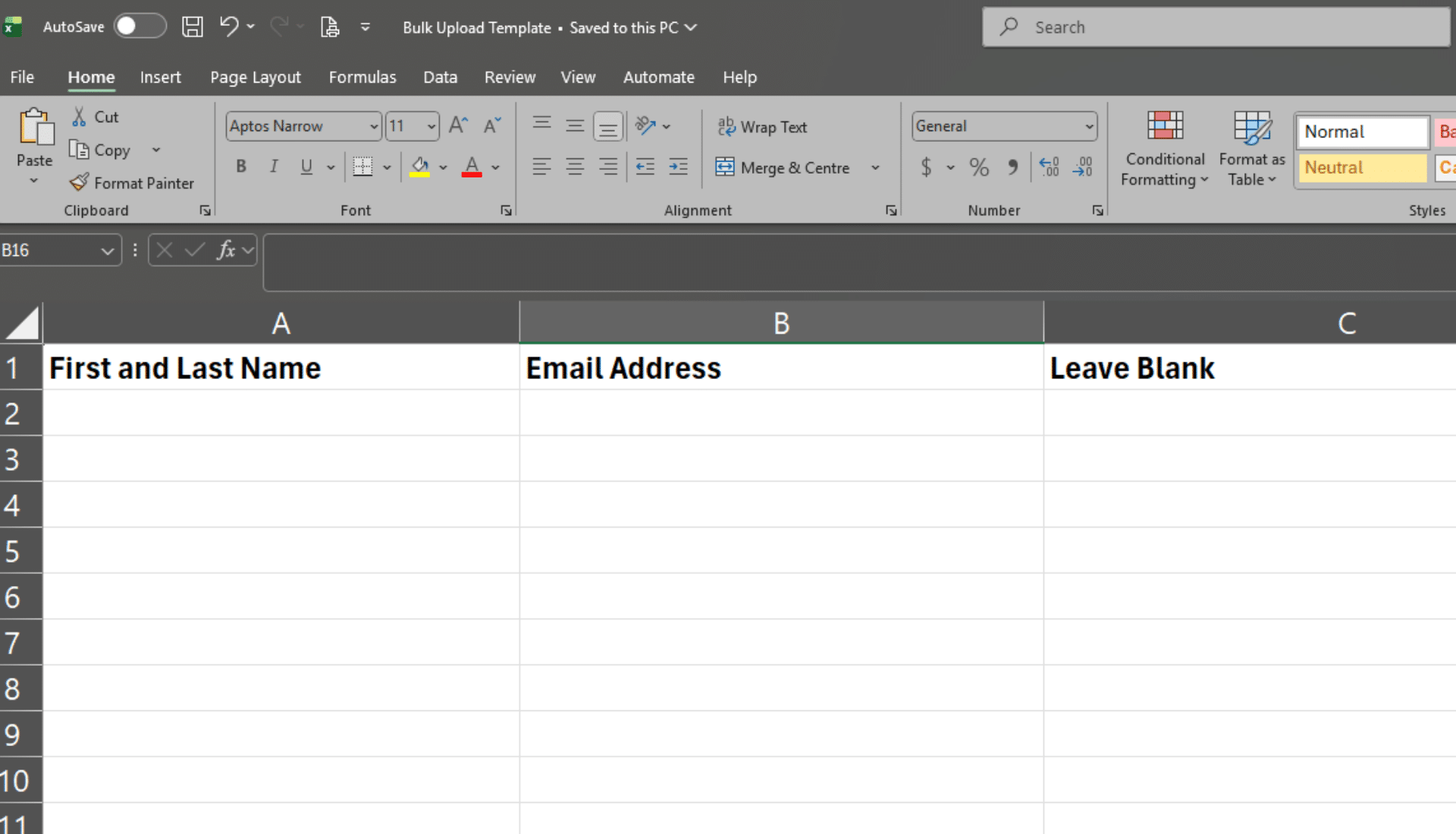
- Paste in the names and email addresses of your users into this file. Do not enter anything into the third column called ‘Leave Blank’. Do not change or remove the headings.
- Now you are ready to upload the file and add your learners.
- In the ‘Users’ section, click ‘Manage Seats’.
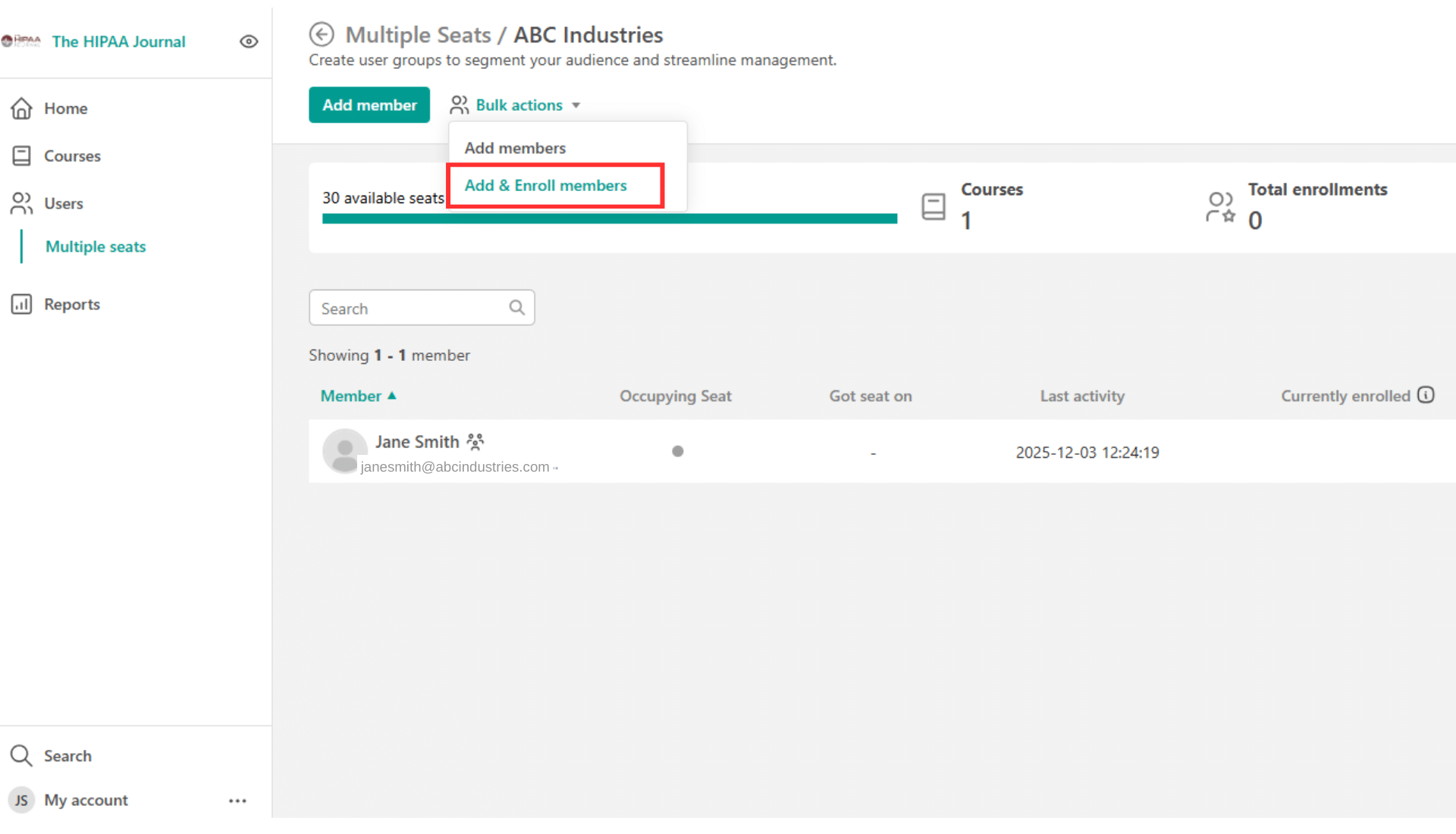
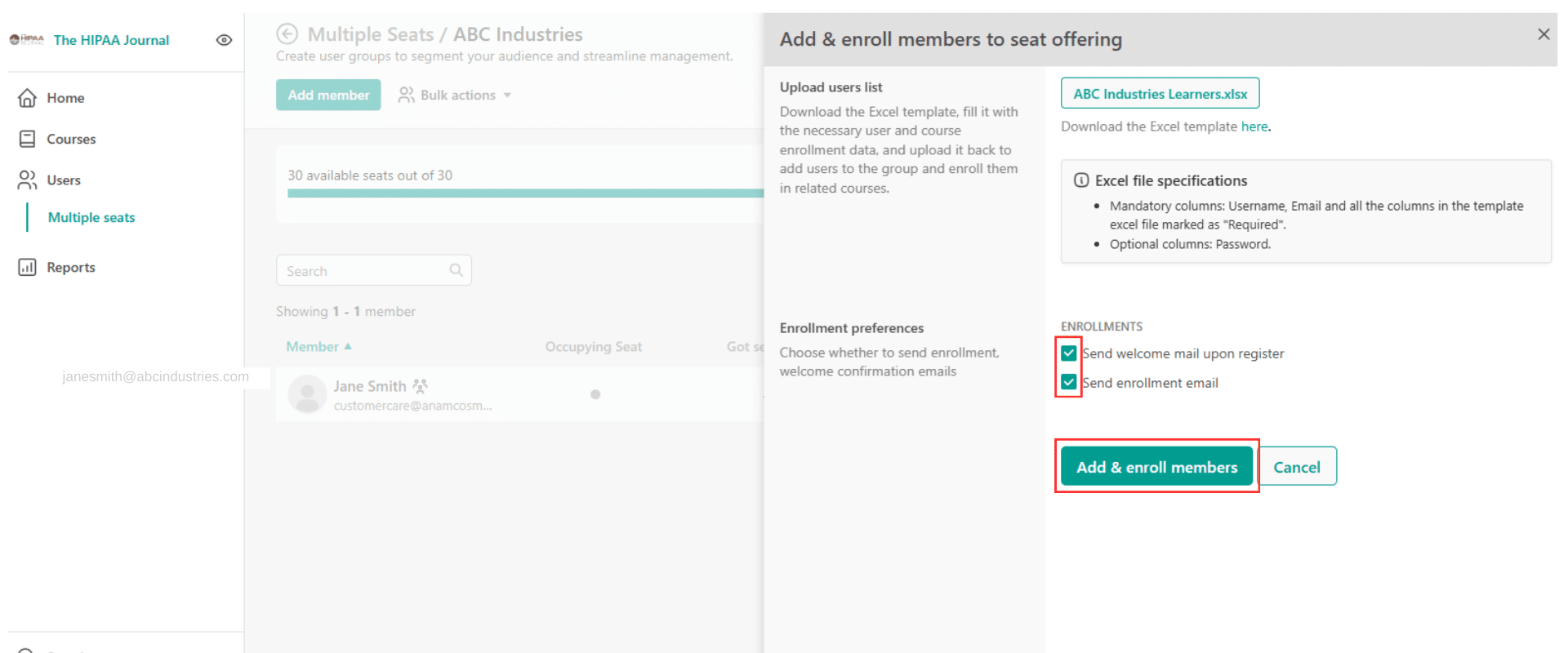
- Hover over “Bulk Actions” and click “Add & Enroll members”.
- Click the Upload file button and add your Excel sheet.
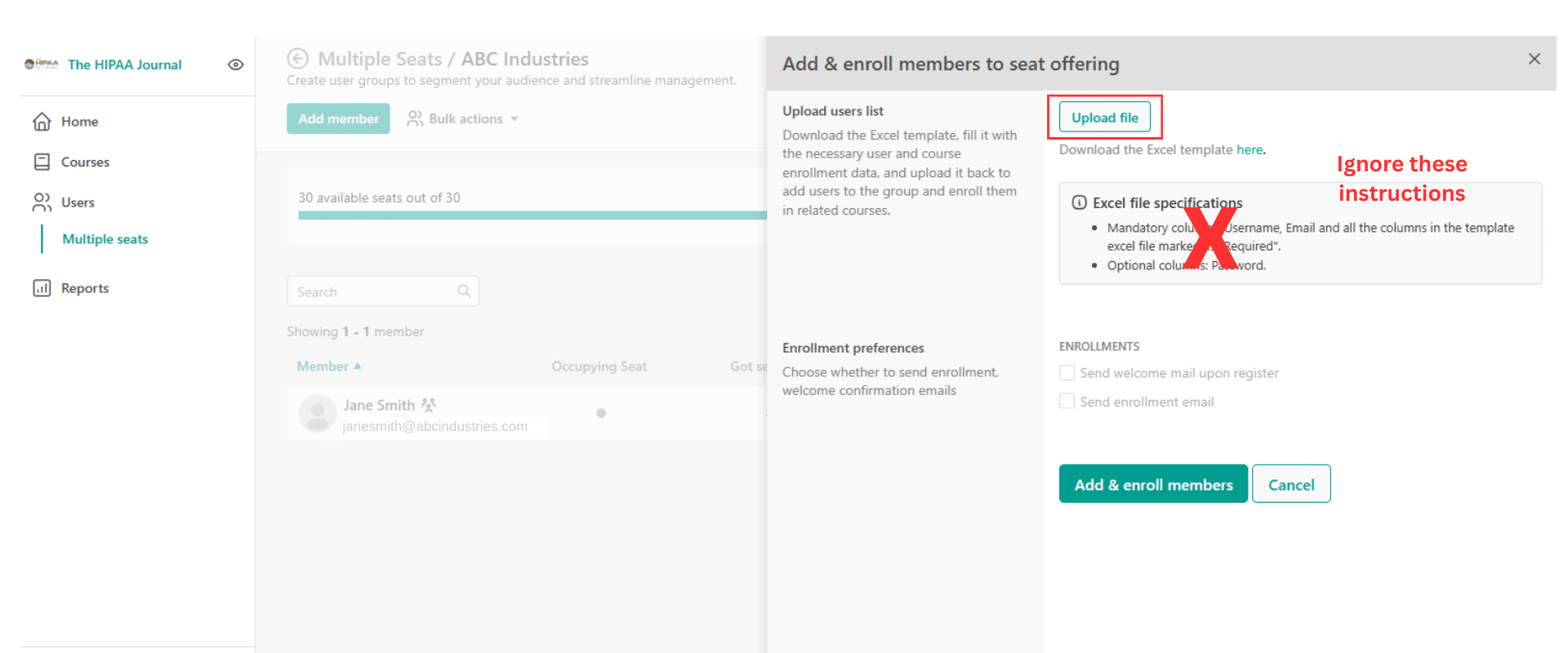
IMPORTANT: Please do not use the template in the enrollment area and please ignore the specifications. Use the template we have provided to avoid any issues. Don’t hesitate to reach out to customer support if you have any questions, either by using this form or by emailing customer support.
-
Once you have uploaded the file, please tick both the ‘Send welcome mail upon register’ and the ‘Send enrollment email’ boxes. Then click the ‘Add & Enroll Members’ button.
- All the users in your file will receive an email asking them to create a password, and then they can begin the course.
- You will be able to track and report who has started and completed their courses in the learner reports and statistics.
Adding Additional Training Managers
Organizations can nominate multiple staff members as Training Managers. For example, a human resources manager may need to be a designated Training Manager in order to enroll new employees as part of the onboarding process, which requires new employees to receive their legally mandated HIPAA training.
Please contact training support with requests to create additional Training Managers by using this form or by emailing: customer support.
Training Manager Access to Learner Reports and Statistics
Training Managers can access reports about their learners.
The Reports Center is displayed on login and can also be accessed through the Reports item on the left menu.
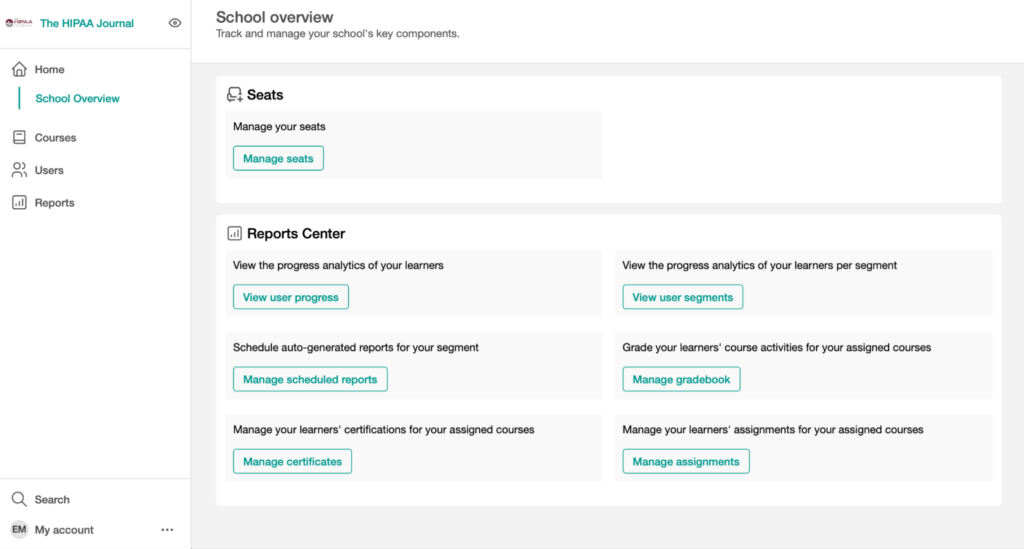
Click the “View user progress” button to open the User Progress report. A list of learners will be displayed with details such as “Last activity”, “Completed courses” and “Certificates”.
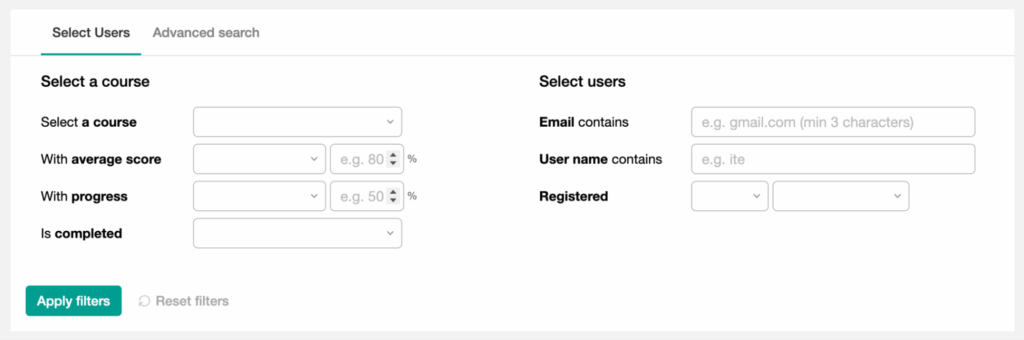
The list of learners can be filtered to see which users have completed or not completed a course, for example.
Learner Progress Details
Further details are available for each learner by navigating to Users on the left menu, then clicking on the learner’s name.
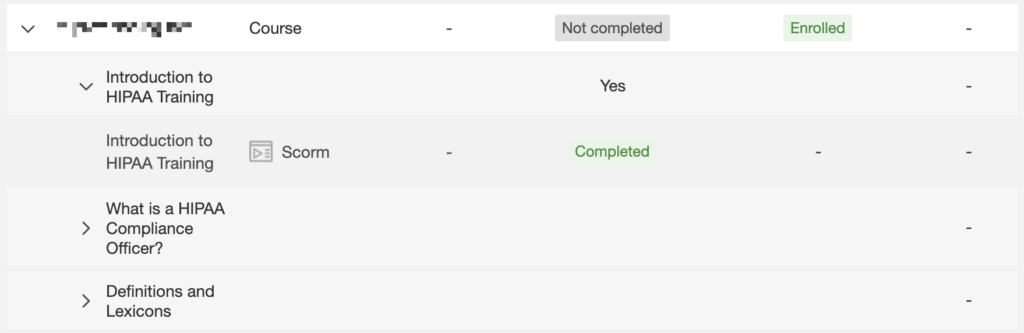
Click the expand icon to the left of the course name to see a list of modules. Each module can be expanded to see time spent on the module and whether the learner has completed the module and any quizzes.
Training Matrix
The Training Matrix view provides an overview of the progress of all learners, with statuses such as “Not Started,” “In Progress,” and “Completed.”
Deleting a Learner
Note: It is necessary under 45 CFR 164.316 and 45 CFR 164.530 to retain training records for six years, and therefore it is not recommended to delete users (learners) who have completed all or part of their mandated training.
In the Seat Offering area, hover over the user to be deleted. A button with three dots will appear to the left of the learner’s username.
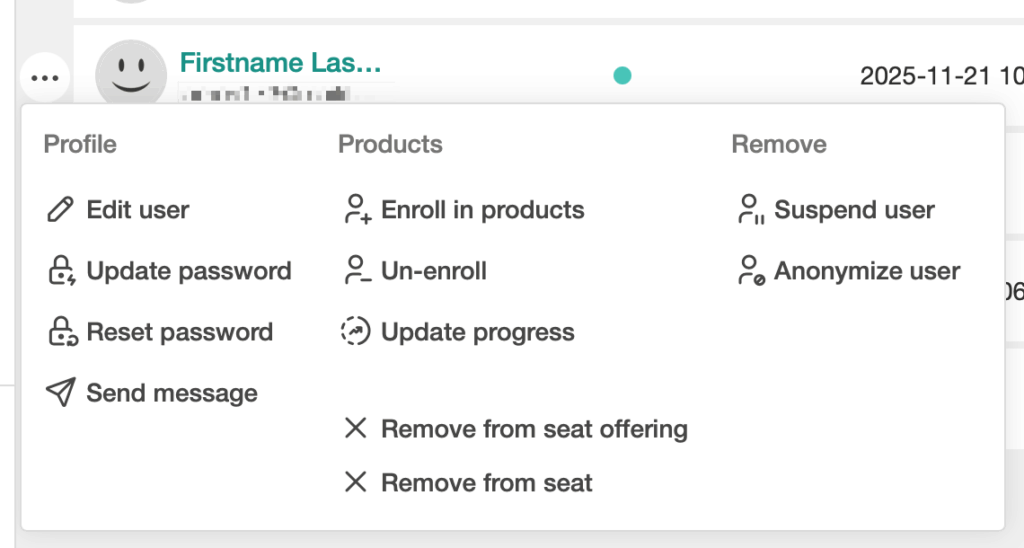
There are two options for removing a learner:
1. Unenroll
This option provides for removing a learner from a specific course only.
2. Remove from Seat Offering
This option will remove the user from the seat offering and they will be unenrolled from their courses.
Maintaining Training Records
The Learning Management System (LMS) automatically retains a record of all required details regarding who has received their mandatory HIPAA training. Under 45 CFR 164.316 and 45 CFR 164.530, the HIPAA retention requirements mandate that HIPAA training records be retained for a minimum of six years. This six-year period generally runs from the date the record was created or the date it was last in effect, whichever is later.
Maintaining these records helps demonstrate ongoing compliance with HIPAA’s privacy and security standards, especially in the event of audits, investigations, or complaints.
In the event of a HIPAA violation by an employee, the HIPAA training records serve as a valuable reference for determining whether the employee was trained to prevent that type of violation.
It is therefore recommended that Training Managers not delete any learners in the system, even when they have left employment in the organization.